The Hub: Creating a Group
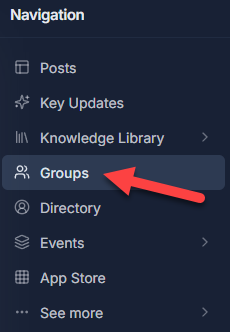
To create a group in The Hub, you will first want to navigate to the "Groups" option on the left and click on it:
Once there, you will click the "+Create Group" button in the top-right:

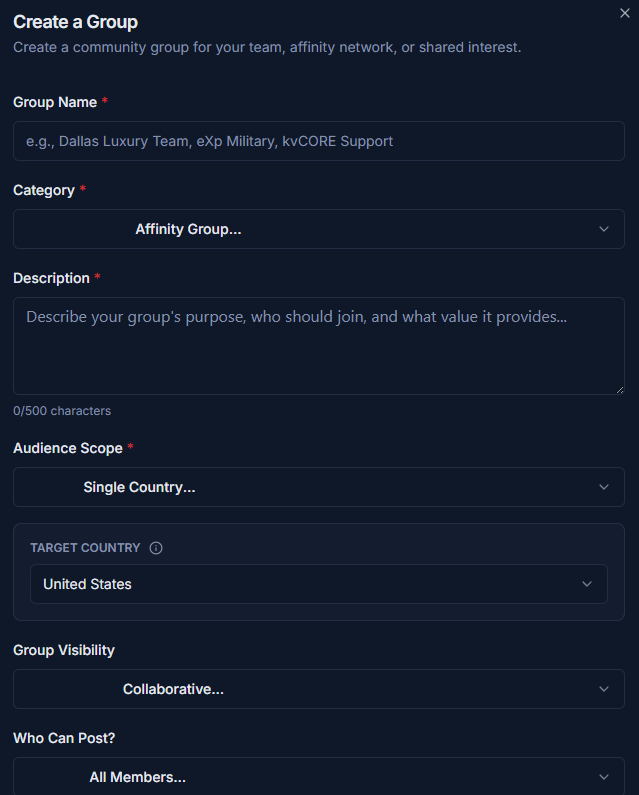
Enter the required info for Group Name, Category, Description, and Audience Scope. There are additional optional fields that can be filled out as well:
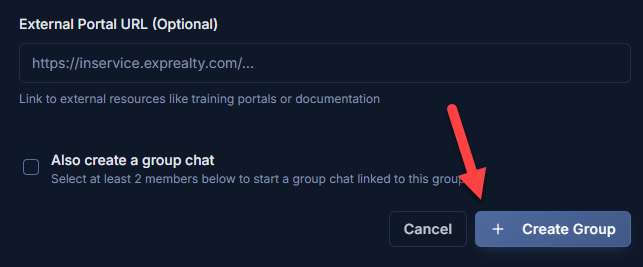
Once you have filled out the appropriate fields, click the "+ Create Group" button at the bottom to have your group created:
If you have any questions about this or run into any issues, you can contact Technical Support at support@exprealty.net or in exp.world at https://exp.world/techsupport-agent
Once there, you will click the "+Create Group" button in the top-right:
Enter the required info for Group Name, Category, Description, and Audience Scope. There are additional optional fields that can be filled out as well:
Once you have filled out the appropriate fields, click the "+ Create Group" button at the bottom to have your group created:
If you have any questions about this or run into any issues, you can contact Technical Support at support@exprealty.net or in exp.world at https://exp.world/techsupport-agent